
Picture, sound and network#
A cloud PC is only as good as the link to it. This page says what to set for a clean picture, how to read the numbers Halyard shows while you play, and what no setting can fix.
The three settings that matter most#
- Cap the bitrate at about 25 Mb/s. On a console over Wi-Fi, above that the picture breaks up in play — blocks, pieces of the previous frame. The server keeps probing for more than the link carries and loses data on every probe. Measured on a Switch: 25 Mb/s holds, 100 Mb/s breaks. Set it in the pause menu › Video › Maximum bitrate, where it applies at once, or in Settings › Video.
- Use a wired link if you can. The software spends a few milliseconds on a frame; a Wi-Fi stall lasts hundreds. On a Switch in handheld mode we measured about one short freeze every twenty seconds over Wi-Fi. A docked Switch with an Ethernet adapter changes more than any setting.
- Leave hardware decoding on. It is much lighter than software decoding and keeps the console's frame rate steady.
For the same picture with less bitrate, try H.265 in Settings › Video › Video codec (Switch). It applies at the next connection.
What to expect#
Measured on a Switch, from the moment a frame arrives to the moment it is on screen, the video path takes about 30 ms, and a button press leaves the console in under 2 ms. Add the network's own round trip to your machine. That is good for most games, but not for competitive play where every frame counts.
The performance panel#
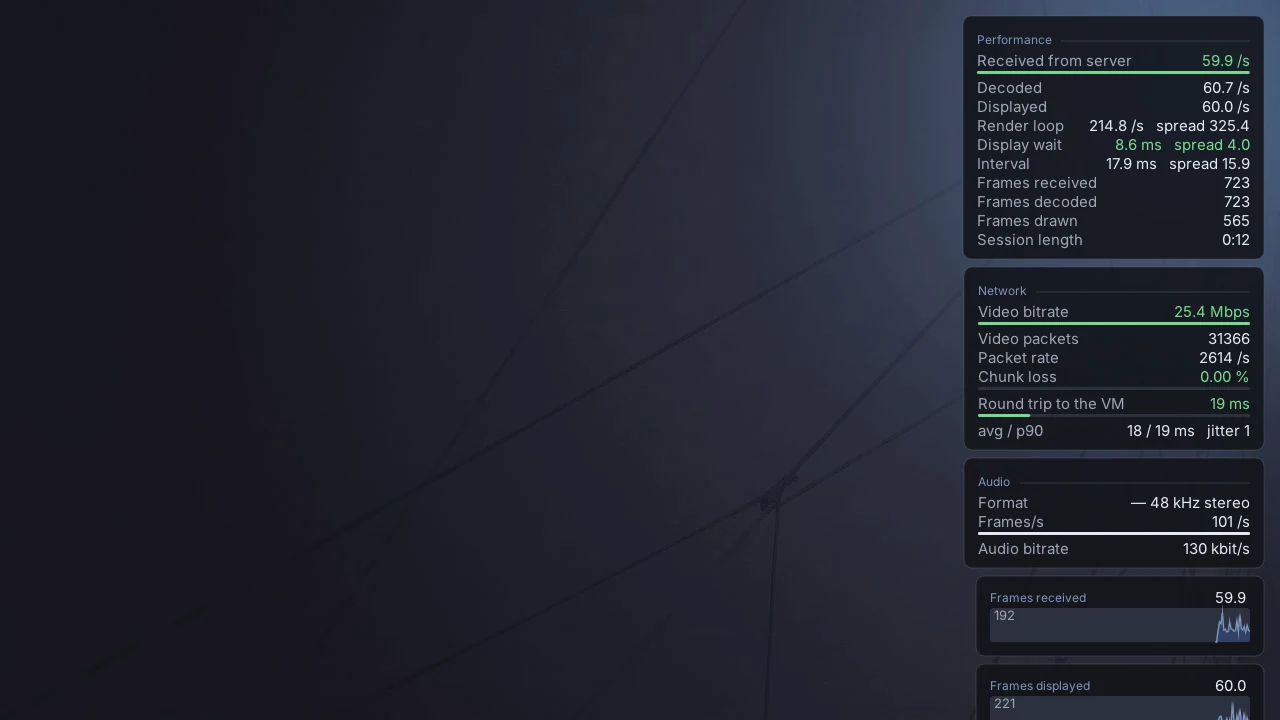
Turn it on in the pause menu › Display › Performance panel. It draws small blocks over the stream; Panel sections chooses which, Graphs adds curves, and Arrange blocks lets you drag them around with a finger. By default it shows Performance, Latency by stage, Network and Advanced.
Performance#
| Line | What it says |
|---|---|
| Received from server | frames per second arriving from your machine — the gauge shows how close it is to the target |
| Decoded / Displayed | frames per second decoded, and actually drawn |
| Render loop | how often the screen is redrawn, and how regular it is (spread) |
| Display wait | how long a decoded frame waits for the screen |
| Interval | the time between two frames shown |
| Frames received / decoded / drawn | totals since the session started |
| Decode errors, Frames dropped | only appear when they are not zero |
Network#
| Line | What it says |
|---|---|
| Video bitrate | what the video actually uses, against your cap |
| Video packets, Packet rate | the traffic in packets |
| Chunk loss | the share of the video that never arrived. Anything but 0.00 % shows as blocks or smearing, until a fresh key frame arrives |
| Round trip to the VM | the time for a message to reach your machine and come back, with its average, 90th percentile and jitter |
The other sections#
- Latency by stage — the time spent at each step of the path, from the network to the screen, as p50 / p90 / p99 / max over the last ten seconds. The first report appears after ten seconds of play. Mostly useful to tell whether a delay is the network or the console.
- Video — the resolution, the codec, and whether decoding is hardware or software.
- Input — the touch mode, and what was sent: moves, clicks, keys.
- Advanced — whether the picture is stretched and whether a gamepad is connected.
- Audio — the format (Opus or FLAC), frames per second, the audio bitrate, and any frames lost.
Link quality#
The pause menu › Video › Link quality page estimates what your link can carry, from the stream you are already playing — it sends nothing extra.
- What the link carries — a suggested cap and the bitrate at which loss starts, or "no ceiling found up to" a value. At the start it says "not enough to conclude yet": keep playing, it learns as the bitrate moves.
- Round trip to the VM — average, 90th percentile, jitter, and the session's minimum and maximum.
- Stream integrity — chunk loss, frames that were never started, truncated frames, and what the console itself had to drop.
The round trip is measured on the control channel, not on the video itself, so the two can differ; and the loss figure is a lower bound.
Sound#
Opus, the default, is light and good. FLAC (Settings › Sound › Audio quality) is lossless, at about nine times the bitrate — worth it on a good link and good headphones. The server decides in the end: the log and the performance panel say which one it granted.
The equaliser has a separate profile for the TV and for the console's own speakers, which reproduce nothing below 250 Hz.
When the network is the problem#
- Blocks or smearing that clear up after a moment: loss. Lower the bitrate.
- The picture freezes, then jumps ahead: a stall. On Wi-Fi, move closer to the router or use a wired link.
- "Picture frozen for N s": no video for five seconds. Halyard asks your machine for a fresh frame, and reconnects on its own if the stream is gone.
- Nothing lost, but you still want fewer artefacts: Video over TCP (Settings › Connection) loses nothing, at the cost of the server no longer adapting its bitrate. It applies at the next connection.