
Settings#
Open the settings with Y from the machine list. L and R move between sections, the D-pad moves between rows, A flips a switch or opens a page, and Left/Right change a value. Every change is saved at once.
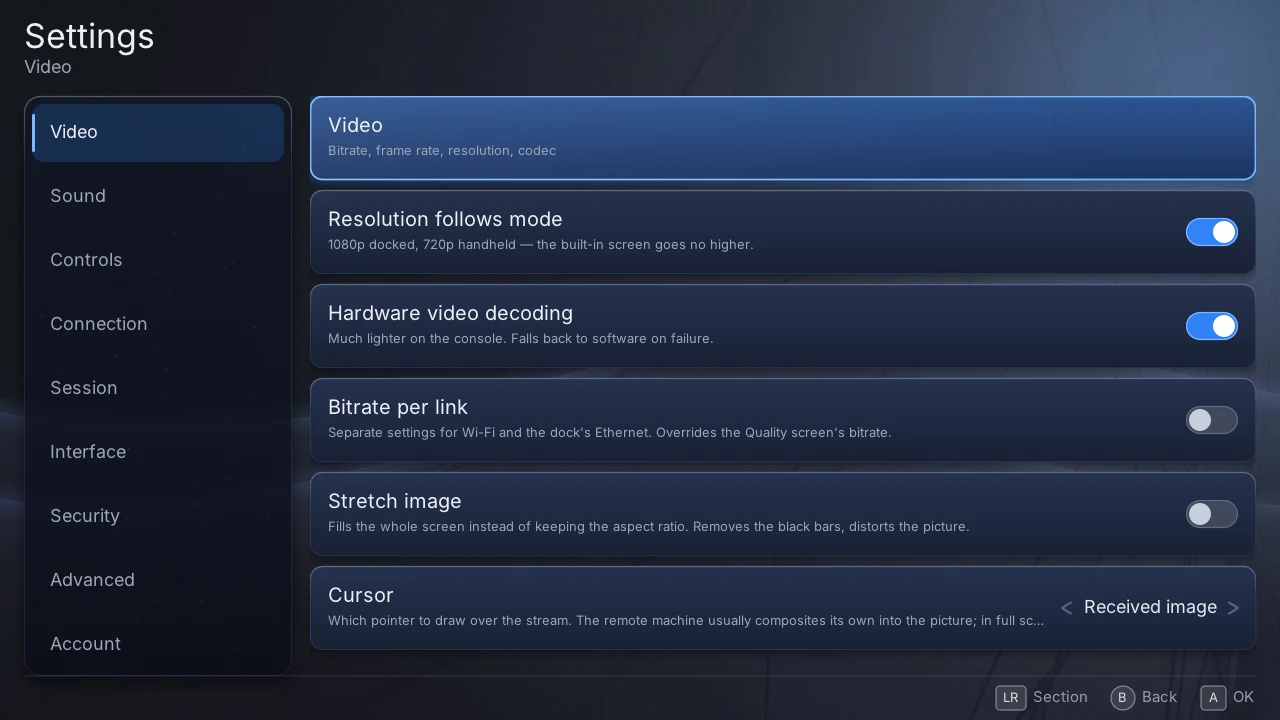
Some settings take effect on the next connection: the server fixes the stream's resolution, codec and audio format when the session opens. The pause menu has most of the settings that make sense while playing.
A setting marked "Forced by env.txt" is being overridden by a file in the data directory, and what it shows is not what is running. See Advanced.
Video#
| Setting | What it does | Default |
|---|---|---|
| Video | opens the stream quality page | |
| Resolution follows mode | 1080p when the Switch is docked, 720p in handheld — the built-in screen shows no more | on |
| Hardware video decoding | decodes with the console's video chip, far lighter than software; falls back to software on failure. Not on the Vita, which always uses its chip | on |
| Bitrate per link | a separate maximum bitrate for Wi-Fi and for the dock's Ethernet (Switch), replacing the one on the quality page | off |
| Wi-Fi bitrate / Ethernet bitrate | the two maxima, when Bitrate per link is on | 15 / 40 Mb/s |
| Stretch image | fills the screen instead of keeping the picture's proportions — no black bars, a distorted picture | off |
| Cursor | which pointer is drawn over the stream: the machine's own (drawn into the picture by Windows), the received image (Halyard draws the machine's pointer itself, which also works in full-screen games) or a plain arrow | received image |
Stream quality#
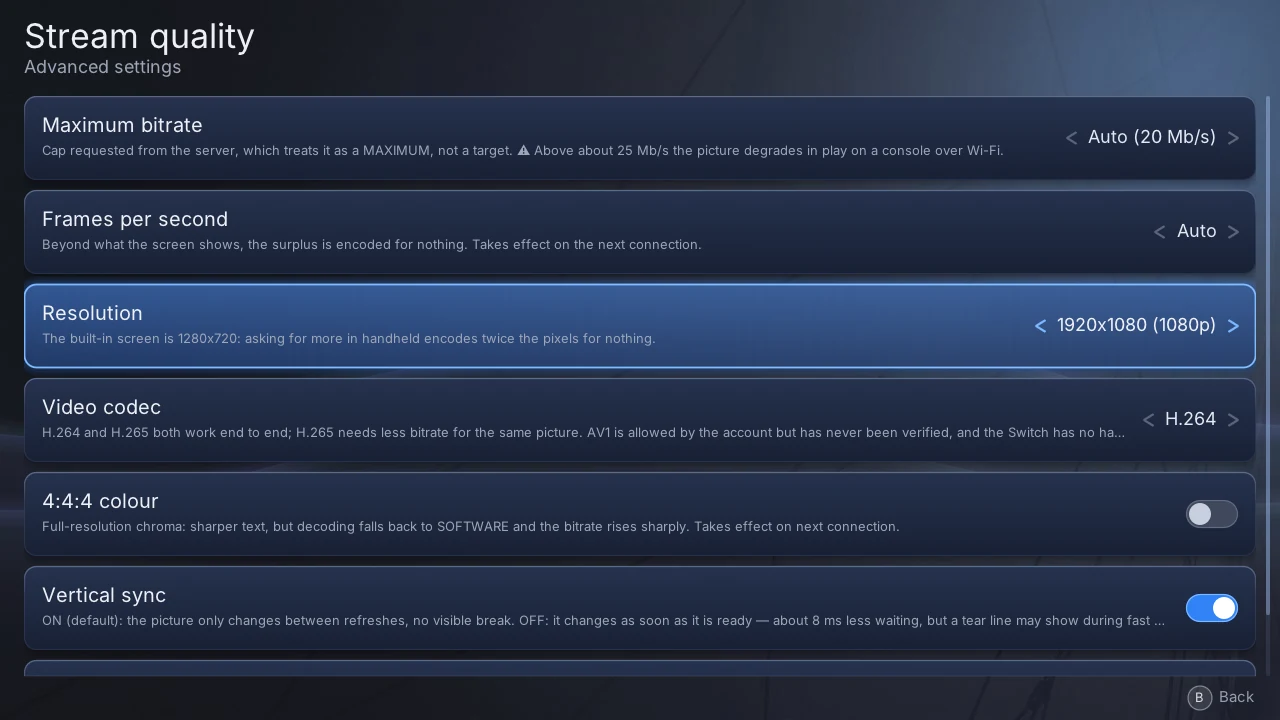
| Setting | What it does | Default |
|---|---|---|
| Maximum bitrate | the ceiling asked of the server, which treats it as a maximum, never a target. Above about 25 Mb/s the picture degrades in play on a console — see Picture, sound and network | 20 Mb/s |
| Frames per second | the frame rate asked of the server: 30, 60, 90, 120, 144 or automatic | 60 |
| Resolution | 720p, 900p, 1080p or 1440p | 720p |
| Video codec | H.264 or H.265 (HEVC), which needs less bitrate for the same picture. AV1 is listed but has never been verified | H.264 |
| Vertical sync | on: the picture changes only between screen refreshes, no tearing. Off: about 8 ms less waiting, at the risk of a tear line in fast motion | on |
| Profile | lowest latency or best quality, as the server understands them, or automatic | automatic |
The defaults above are a console's; a desktop build starts on automatic bitrate and frame rate, at 1080p. Frame rate, resolution and codec are not offered on the Vita, whose video chip decodes H.264 only. A desktop build also offers 4:4:4 colour, for sharper text at the cost of software decoding and a much higher bitrate.
Sound#
| Setting | What it does | Default |
|---|---|---|
| Volume | 0 to 300 %. Above 100 % the sound is boosted, and loud passages clip | 100 % |
| Audio quality | high fidelity asks for lossless FLAC (about 900 kbit/s instead of 100 for Opus). Next connection | off (Opus) |
| Hardware audio decoding | Switch only: decodes Opus with the console's service. Saves a few percent of one core, costs a round trip per packet | off |
| Equaliser | opens the equaliser |
Equaliser#
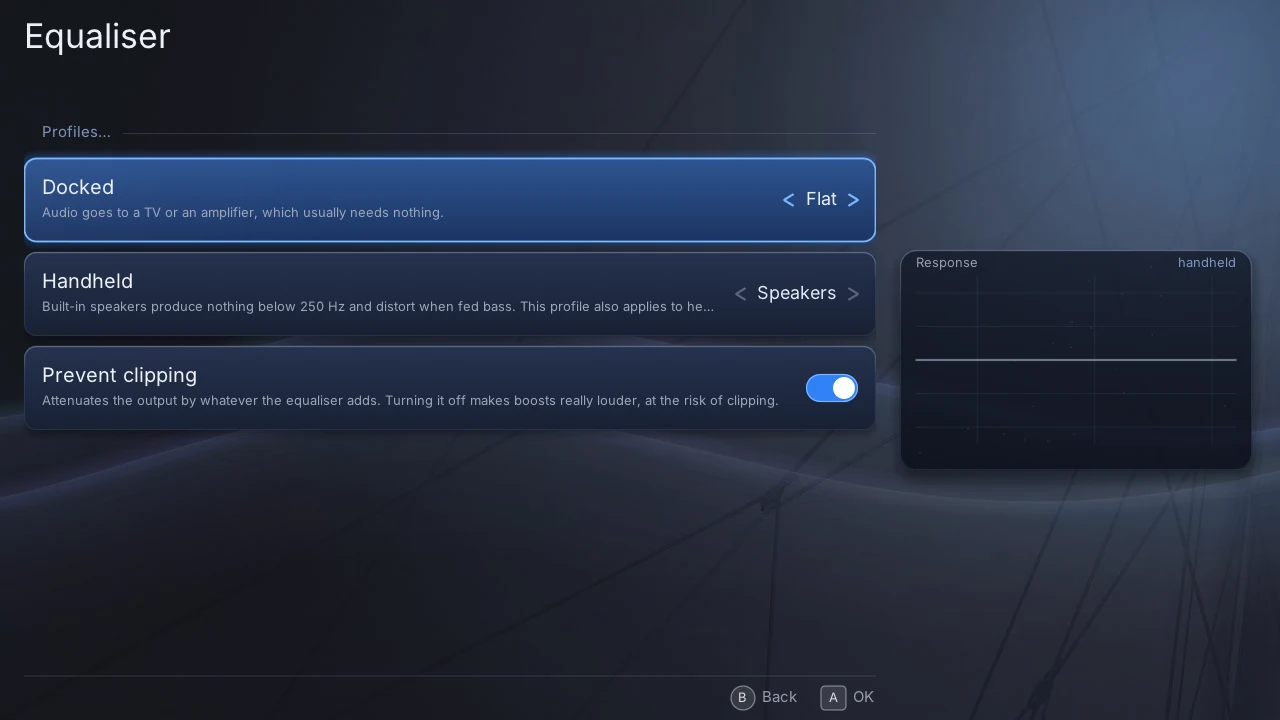
A tonal correction of the machine's sound, with one profile for docked and one for handheld, since a TV and the console's own speakers need different things. The curve on the right shows what the current profile does.
| Setting | What it does | Default |
|---|---|---|
| Docked | the profile used on a TV: flat, speakers, headphones, voice, quiet listening or custom | flat |
| Handheld | the profile used on the built-in speakers, which give nothing below 250 Hz | speakers |
| Prevent clipping | lowers the output by whatever the equaliser adds, so boosts cannot distort | on |
| Adjust the bands | with a custom profile: five bands, each with its type, frequency (30 Hz–16 kHz), width and gain (±12 dB) |
The same settings are in the pause menu › Audio › Equaliser, where you hear the result as you change it.
Controls#
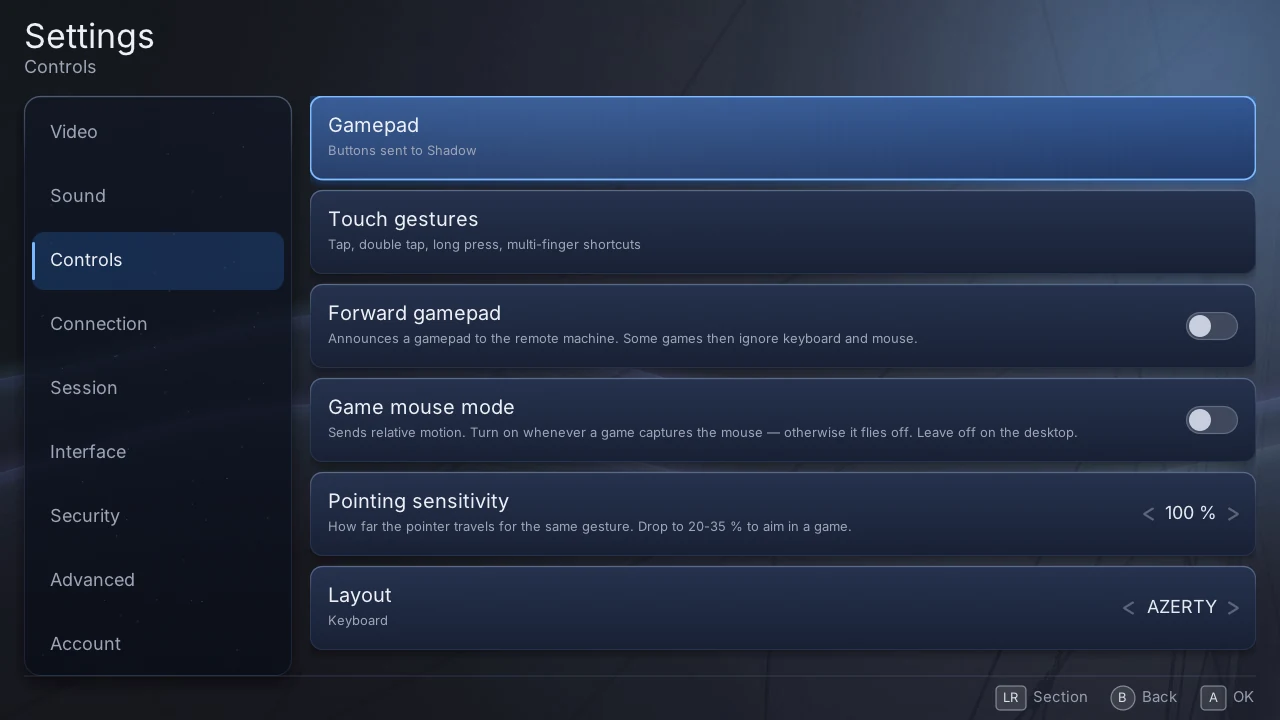
| Setting | What it does | Default |
|---|---|---|
| Gamepad | opens the gamepad page | |
| Touch gestures | opens the touch gestures page | |
| Forward gamepad | announces a gamepad to your machine. Some games then ignore the keyboard and mouse | on |
| Game mouse mode | sends mouse movement instead of positions — turn it on in games that capture the pointer, off on the desktop | off |
| Pointing sensitivity | how far the pointer moves for the same finger movement, 10–200 %. Around 20–35 % for aiming in a game | 100 % |
| Layout | the on-screen keyboard's letters: AZERTY or QWERTY | AZERTY |
Gamepad#
| Setting | What it does | Default |
|---|---|---|
| Test the controller | shows what the console reads, button by button, and — during a stream — what is sent to the machine next to it. If the two differ, the fault is Halyard's | |
| Test the pointing | the pointer, the sensors and the buttons in figures; sends nothing | |
| Announced controller type | what your machine believes is plugged in: Xbox 360, Xbox One, DualShock 4, a single Joy-Con, or generic. Next connection | Xbox 360 |
| Button mapping | one row per console button: which button it becomes on the announced controller, or none | by position |
| Invert vertical stick axis | swaps up and down on both sticks | off |
| Stick dead zone | how far a stick must move before it counts, 0–40 % | 10 % |
| Rear touch panel | Vita only: turns the four quarters of the back panel into ZL, ZR, L3, R3 or analogue triggers, each with a tap, hold or slide gesture | off |
| Motor test | Switch only: the rumble strength, and a test of each motor | 100 % |
| Restore the default mapping | back to the mapping by position |
To leave a tester, hold B until the bar fills.
Touch gestures#
For one, two and three fingers, what a tap, a double tap and a long press do: nothing, a left, right or middle click, a double click, a drag, the on-screen keyboard, the pause menu, Escape, the Windows key or Alt+Tab. The defaults are listed in Controls.
A double tap left on Automatic repeats the single tap, so a tap clicks at once. Giving the double tap its own action makes every single tap wait 0.4 s, to see whether a second one follows.
Connection#
| Setting | What it does | Default |
|---|---|---|
| Auto-connect | connects on its own when the account has a single machine | on |
| Video over TCP | Shadow's "reliability" profile: nothing is lost, but the server no longer adapts its bitrate. Next connection | off |
| Register the input channel | an experiment that may let the machine see a gamepad more reliably. Check that the mouse and keyboard still work | off |
Session#
| Setting | What it does | Default |
|---|---|---|
| Stop when leaving the app | Switch only: the HOME menu and sleep end the session. Keeping it is a gamble — the console may stop the app anyway | on |
| Auto-reconnect | reconnects on its own when the stream dies unexpectedly | on |
| Attempts | how many times it tries, 1 to 5 | 3 |
Interface#
| Setting | What it does | Default |
|---|---|---|
| Interface sounds | small sounds on navigation and confirmation; silent during a stream | on |
| Sound volume | their volume, separate from the game's | 70 % |
| Haptic feedback | Switch only: a short vibration on limits and toggles; off during a stream | 60 % |
| Interface size | 75 to 200 % | 100 % (75 % on Vita) |
| Language | the console's language, French or English. Restart the app to apply | console language |
Security#
The application lock asks for a code before the app opens. Choose one or several methods:
- PIN — 4 to 12 digits.
- Pattern — a path across a 3×3 grid, drawn with a finger or the D-pad.
- Password — 4 to 63 characters, typed on the system keyboard.
Re-lock on wake (Switch, on by default) asks again after sleep or the HOME menu. Remove the lock removes every method at once. After four wrong attempts, each new one has to wait, up to ten minutes.
Setting a lock also seals your saved session, so it can no longer be read off the memory card. The other files in the data directory stay readable.
Advanced#
| Setting | What it does | Default |
|---|---|---|
| Log level | how much the app writes to its log: failures only, normal, detailed or everything | normal |
| Development channel | lets a computer read the log and take screenshots — see Advanced. On by itself when a destination is configured | off |
| Space used | the size of the logs kept | |
| View the log | reads the log on the console: the current session and the previous ones (Y) | |
| Clear the logs | empties the current log and deletes the older ones | |
| Settings forced by env.txt | lists what env.txt is overriding |
|
| Reset settings | puts every setting back to its default; play time is kept |
Account#
| Setting | What it does |
|---|---|
| Sign out | forgets your session and quits the app; the next launch asks you to link the console again |
| Replay from the start / Replay, pairing included | go back to the start screen without closing the app — the second one also forgets the session, so the sign-in code comes back. Useful to record the whole journey |
About#
The version and build of the app, its licence and source, and your play time today, this month and in total (sessions of ten seconds or more).